Skip to content
IOP Science

How do I know if my institution has access to IOPP products?

Please contact your Head Librarian, who can confirm whether your institution has access to IOP content. If access is available, they will also be able to share the correct instructions for logging in

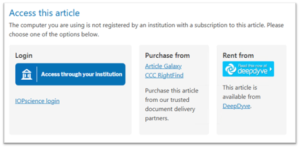
Should you visit any article on the IOPscience platform and see the message shown below on the article page, it means that your institution does not currently hold a subscription to this content.

If you see the above message it could also be that you are outside of your institutions IP address range.  Here’s how to get remote access: ‘Institutional login for remote and seamless access

You can also use the link to the ‘Recommendation Form’, please complete this form and we will follow up with your librarian or Institution on your behalf.

For corporate researchers we can also follow up directly with your R&D manager, or the information management contact at your company. Institutional subscribers have access to the current volume, plus a 10-year back file (where available).

If you have any further questions, please contact our Customer Service team.

What is an Entity ID and Scope?

What is an Entity ID and what is it used for?

An Entity ID is the unique identifier that enables SSO setups to distinguish a specific system or service provider. Typically, an Entity ID is a URL and must be exclusive within your identity environment. It works by acting as a ‘unique name tag’ on both sides to route requests, search for metadata, and ensure the login belongs to the correct system.

What is the scope used for?

The Entity ID connects to a specific server or provider, while the scope identifies the organisation or internet domain. The scope validates users against their institution, provides an additional layer of control, and tells the identity provider what information to request during sign-in. Essentially, the scope informs the identity provider what information is being requested when a user logs in.

If you have any further questions, please contact our Customer Service team.

What societies does IOPP support?

Society members can use the list below to view the journal access available on IOPscience. It provides an overview of each supported society and the content included with its membership.
Access depends on your society membership type. Reviewing your membership details will show the content available to you.

Supported societies and their access

Institute of Physics and Engineering in Medicine (IPEM)

  • Access to all IPEM Journals and Reports, with all content years available.
  • IPEM membership page: Click here

The London Mathematical Society (LMS)

  • Access to the journal Nonlinearity, with coverage depending on membership type.
  • LMS membership page: Click here

The Astronomical Society of the Pacific (ASP)

  • Access to Publications of the Astronomical Society of the Pacific (PASP), usually the current year plus the previous ten years.
  • ASP membership page: Click here

Japan Society of Fluid Mechanics (JSFM)

  • Access to Fluid Dynamics Research (FDR).
  • JSFM membership page: Click here

Institute of Physics (IOP)

  • Full access to 70 IOP‑owned journals and all available content years — the widest access of any membership.
  • IOP membership page: Click here

The Society for Radiological Protection (SRP)

  • Access to the Journal of Radiological Protection and the Journal of the Society for Radiological Protection, with all content years available.
  • SRP membership page: Click here

The Japan Society of Applied Physics (JSAP)

  • Access to the Japanese Journal of Applied Physics and Applied Physics Express, with all content years available.
  • JSAP membership page: Click here

The Italian Physical Society (SIF – Società Italiana di Fisica)

  • Access to EPL (Europhysics Letters), with all content years available.
  • SIF membership page: Click here


Not sure which society you belong to?

Our Customer Services team can verify your membership details and confirm your access rights. Contact us when access appears incorrect or membership information requires clarification.

How do I set up federated access?

Prior to logging in, your institution must be part of the supported Federation list. If it is not, your institution will need to work with its Federated Access supplier to obtain its Entity ID and Scope.

Once you have confirmed the Entity ID and Scope, send them to our Customer Services team. The team will register your federation details against your account and apply the necessary updates. You can then sign in with your institutional credentials to access your chosen content.

If you have any further questions, please contact our Customer Service team.

How do I update my Institutional IP Address?

IOP Publishing authenticates institutional subscribers by their registered Internet Protocol (IP) addresses. IOP Publishing only accepts IP ranges that belong to the subscribing institution or that the institution uses exclusively.  All institutional subscribers must provide their IP addresses or IP ranges within the licence agreement. Library administrators may submit updates or corrections directly through TheIPRegistry.

An IP address is a numerical identifier that identifies each device accessing the internet. It typically consists of four groups of numbers separated by dots (for example, 198.162.123.154). Devices on the same local area network or subnet often share the first two or three number groups.

To ensure the accuracy of usage reporting, IOP Publishing does not permit IP address sharing across multiple institutions or accounts. When an IP address conflicts with one already registered in our system, our Customer Services team contacts both institutions to resolve the issue. Users must not systematically or automatically download content through authorised IP ranges.

All submitted IP addresses are subject to review and approval. We reserve the right to reject any IP ranges that do not meet these criteria. For accurate information, please consult your network administrator.

For a clearer explanation of how IP addresses work and why they matter for access, take a look at our ‘IP Address Glossary’ article. It breaks down the key terms and concepts so you can understand exactly what’s happening behind the scenes.

Should you need assistance, please refer to IPRegistry’s FAQs or contact the IP Registry team. If the issue relates to your IOPscience access, our Customer Services team is also here to help.

If you have any further questions, please contact our Customer Service team.

What Is an IP Address? A Quick Guide for Customers

Introduction

An IP address (Internet Protocol address) is a unique numerical identifier that identifies every device connected to the internet. It works much like a digital home address, helping online services send information to the correct place.

What an IP Address Does

IP addresses perform two key functions:

  • Identify your device on a network
  • Provide its network location so data can be delivered correctly

Without an IP address, a device cannot communicate online.

Types of IP Addresses

There are two main formats:

  • IPv4 — the original and most widely used format (e.g., 192.0.2.1)
  • IPv6 — a newer format designed to support a larger number of devices

For access to our services, we only accept IPv4 addresses.
IPv6 addresses cannot be registered or used for authentication.

You may also encounter:

  • Public IP addresses — visible to the internet
  • Private IP addresses — used within your home or institutional network

How to Locate Your IP Address

To check the IP address your institution is currently using to access our platform, visit:

https://iopscience.iop.org/checkup

This page automatically displays the IP address detected by our system.

Why IP Addresses Matter for Access

Many institutions use IP authentication to provide seamless access to subscribed online content. When your public IPv4 address matches an approved institutional range, access is granted automatically.

If your institution needs to register or update its IP addresses, your administrator may be asked to provide them to our Customer Service Team.

For a clearer explanation of how IP addresses work and why they matter for access, take a look at our ‘IP Address Glossary’ article. It breaks down the key terms and concepts so you can understand exactly what’s happening behind the scenes.

If you have any further questions, please contact our Customer Service team.


What COUNTER reports are available?

COUNTER Usage Reports are provided for COUNTER 5 and COUNTER 5.1 compliancy.

Report Types:

TR – Title Report / Title Master Report

COUNTER 5: Focuses on content usage at the title level (journals and books).
COUNTER 5.1: Focuses on content usage at the title level (journals and books), aligned with updated metric definitions.

****

TR_B1 – Book Requests (Excluding OA_Gold / Controlled)

COUNTER 5: Pre‑set book view showing full‑text activity for all non‑Gold Open Access content. The way content is used may differ when accessed as a complete book rather than by chapter.
COUNTER 5.1: Reports successful full‑text requests for book and Element content, excluding open/free‑to‑read content, broken down by metric type (total item requests, unique title requests).

****

TR_B2 – Book Access Denied

COUNTER 5: Shows where users were denied access because concurrency limits were exceeded or the institution lacked a licence.
COUNTER 5.1: Reports access‑denied activity for book and Element content.

****

TR_B3 – Book Usage by Access Type

COUNTER 5: Shows all applicable metric types broken down by Access_Type.
COUNTER 5.1: Reports usage across all metric types (investigations and requests) for book and Element content, broken down by access type (controlled, open, or other free‑to‑read).

****

TR_J1 – Journal Requests (Excluding OA_Gold / Controlled)

COUNTER 5: Pre‑set journal view showing full‑text activity for all non‑Gold Open Access content.
COUNTER 5.1: Reports successful full‑text article requests by month and journal, excluding open/free‑to‑read content, broken down by metric type (total item requests, unique item requests).

****

TR_J2 – Journal Access Denied

COUNTER 5: Shows where users were denied access because concurrency limits were exceeded or the institution lacked a licence.
COUNTER 5.1: Reports access‑denied activity for journal articles by month and journal.

****

TR_J3 – Journal Usage by Access Type

COUNTER 5: Shows all applicable metric types broken down by Access_Type.
COUNTER 5.1: Reports usage of journal content for all metric types, broken down by Access_Type.

****

TR_J4 – Journal Requests by YOP (Excluding OA_Gold / Controlled)

COUNTER 5: Breaks down full‑text usage of non‑Gold Open Access content by year of publication (YOP).
COUNTER 5.1: Reports successful full‑text article requests by journal and year of publication, excluding open/free‑to‑read content, broken down by metric type.

****

PR – Platform Report / Platform Master Report

COUNTER 5: Platform‑level usage by metric type (total item requests, unique item requests, unique title requests, platform searches) and data type (book, journal, platform).
COUNTER 5.1: Platform‑level usage across the same metric types and data types, aligned with updated COUNTER 5.1 definitions.


If you have any further questions, please contact our Customer Service team.

How do I reset my COUNTER login details?

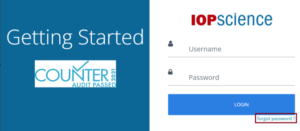
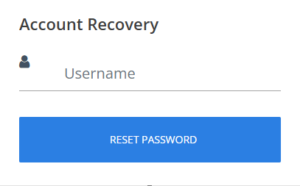
To reset your login details, you can use the ‘Forgot Password’ link from the main COUNTER login screen Or use the following link 


**If you do not receive the password‑reset email, please check your spam/junk folder.**

You will be asked to answer your security question. Once this is completed successfully, an automated email containing your new password will be sent to you.

Please contact our Customer Service team should you need further assistance.

Is IOP Publishing COUNTER 5.1 compliant?

Is IOP Publishing COUNTER 5.1 compliant? 

Yes, IOP Publishing is COUNTER 5.1 compliant from January 2025. We also generate usage data in the release 5.0 format from January 2022 until Dec 2024, thereafter no new 5.0 reports will be generated.  


Please contact our Customer Service team if you have any further questions.